Manipulating Files
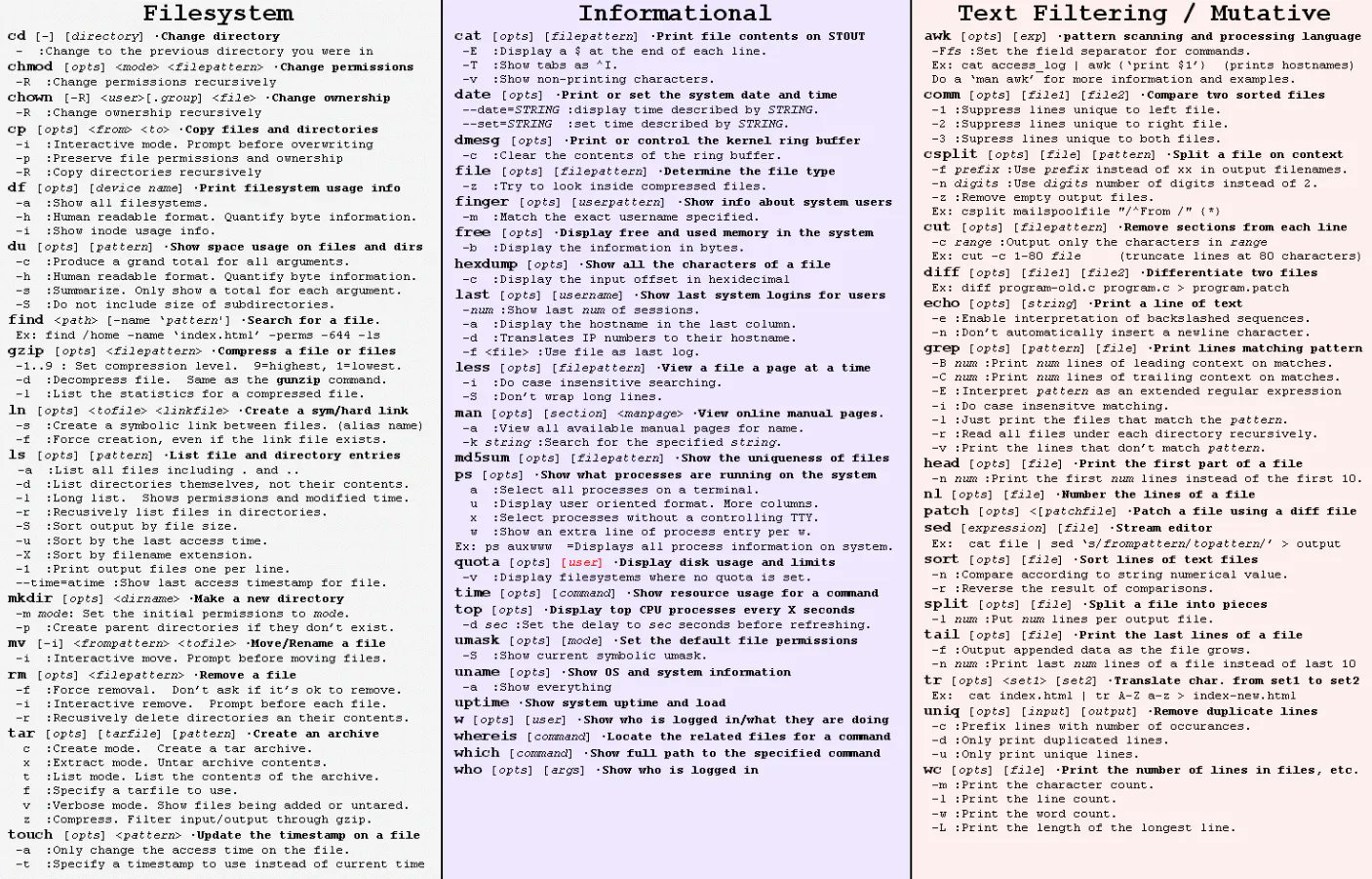
chmod : The chmod command allows you to alter access rights to files and directories.
the shell prompt type: ls -alt
You should see some files with the following in front of them
example:
drwxrwsr-x 7 rajesh 1024 Apr 6 14:30
drwxr-s--x 22 rajini 1024 Mar 30 18:20
d-wx-wx-wx 3 Cheguevara1024 Apr 6 14:30
What do the letters mean in front of the files/directories mean?
r indicates that it is readable
w indicates that it is writable
x indicates that it is executable
- indicates that no permission to manipulate has been assigned
When listing your files, the first character lets you know whether you’re looking at a file or a directory. It’s not part of the security settings.
The next three characters indicate Your access restrictions.
The next three indicate your group's permissions, and
finally other users' permissions.
chmod 755 filename
The example above will grant you full rights, group rights to execute and read, and all others access to execute the file.
7 permission Full
6 permission read and write
5 permission read and execute
4 permission read only
3 permission write and execute
2 permission write only
1 permission execute only
0 permission none
cp
Type cp followed by the name of an existing file and the name of the new file.
Ex:
cp rajesh ganguly
To copy a file to a different directory (without changing th
e file’s name), specify the directory instead of the new
filename. Ex:
cp rajesh newdir
To copy a file to a different directory and create a new file name, you need to specify a directory/a new file name.
cp rajesh newdir/ganguly
cp rajesh ../ganguly
The .. represents one directory up in the hierarchy.
fileType file followed by the name of an existing file in the directory.
Ex:
file emergency3_demo.exe
OUTPUT: MS-DOS executable (EXE)
This command allows you to figure out what the file type is and how to use it. For instance the command will tell you whether it is an executable, a compressed file and which type, or something unusual.
This command is simplistic, but often can allow you to determine why a file does not respond the way you expect.
mvType mv followed by the current name of a file and the new name of the file.
Ex:
mv oldfile newfile
Type mv followed by the name of a file and the new directory where you'd like to place the file. Ex:mv newfile testdirThis moves the file named newfile to an existing directory named testdir. Be certain you’re specifying a directory
name or the mv command alters the name of the file instead of moving it.rmType rm followed by the name of a file to remove the file.
Ex:
rm newfile
Use the wildcard character to remove several files at once. Ex:rm n*This command removes all files beginning with n.
Type rm -i followed by a filename if you’d like to be prompted before the file is actually removed. Ex:rm -i newfile
rm -i n*By using this option, you have a chance to verify the removal of each file. The -i option is very handy when removing
a number of files using the wildcard character *.
the shell prompt type: ls -alt
You should see some files with the following in front of them
example:
drwxrwsr-x 7 rajesh 1024 Apr 6 14:30
drwxr-s--x 22 rajini 1024 Mar 30 18:20
d-wx-wx-wx 3 Cheguevara1024 Apr 6 14:30
What do the letters mean in front of the files/directories mean?
r indicates that it is readable
w indicates that it is writable
x indicates that it is executable
- indicates that no permission to manipulate has been assigned
When listing your files, the first character lets you know whether you’re looking at a file or a directory. It’s not part of the security settings.
The next three characters indicate Your access restrictions.
The next three indicate your group's permissions, and
finally other users' permissions.
chmod 755 filename
The example above will grant you full rights, group rights to execute and read, and all others access to execute the file.
7 permission Full
6 permission read and write
5 permission read and execute
4 permission read only
3 permission write and execute
2 permission write only
1 permission execute only
0 permission none
cp
Type cp followed by the name of an existing file and the name of the new file.
Ex:
cp rajesh ganguly
To copy a file to a different directory (without changing th
e file’s name), specify the directory instead of the new
filename. Ex:
cp rajesh newdir
To copy a file to a different directory and create a new file name, you need to specify a directory/a new file name.
cp rajesh newdir/ganguly
cp rajesh ../ganguly
The .. represents one directory up in the hierarchy.
fileType file followed by the name of an existing file in the directory.
Ex:
file emergency3_demo.exe
OUTPUT: MS-DOS executable (EXE)
This command allows you to figure out what the file type is and how to use it. For instance the command will tell you whether it is an executable, a compressed file and which type, or something unusual.
This command is simplistic, but often can allow you to determine why a file does not respond the way you expect.
mvType mv followed by the current name of a file and the new name of the file.
Ex:
mv oldfile newfile
Type mv followed by the name of a file and the new directory where you'd like to place the file. Ex:mv newfile testdirThis moves the file named newfile to an existing directory named testdir. Be certain you’re specifying a directory
name or the mv command alters the name of the file instead of moving it.rmType rm followed by the name of a file to remove the file.
Ex:
rm newfile
Use the wildcard character to remove several files at once. Ex:rm n*This command removes all files beginning with n.
Type rm -i followed by a filename if you’d like to be prompted before the file is actually removed. Ex:rm -i newfile
rm -i n*By using this option, you have a chance to verify the removal of each file. The -i option is very handy when removing
a number of files using the wildcard character *.

Comments